Frontend
How it works - Frontend
- You will create a code repository in AWS CodeCommit.
- You will download the existing frontend code into your Cloud9 IDE and push the code to this repository.
- You will configure Amplify Console to connect to your repository and publish the web app.
After this section, you will be able to see the published web app on both your PC and mobile device by visiting the published URL.
The Serverless Frontend
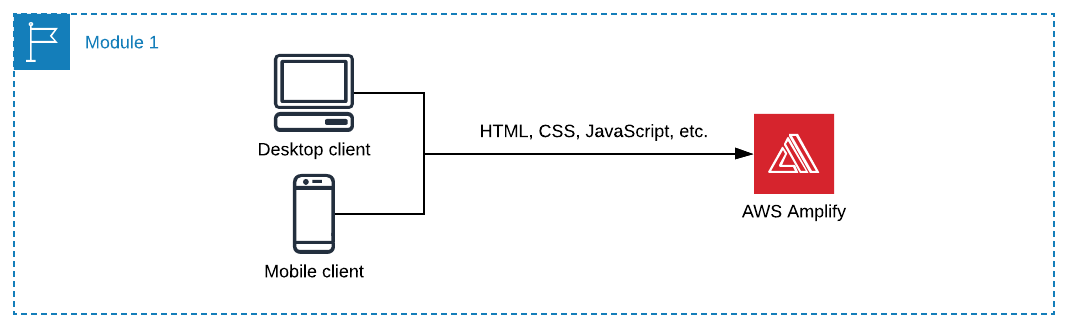
- All of your static web content including HTML, CSS, JavaScript, images and other files will be managed by AWS Amplify Console and served via Amazon CloudFront.
- Your end users will then access your site using the public website URL exposed by AWS Amplify Console. You don’t need to run any web servers or use other services in order to make your site available.
More information on the services introduced in this section:
Deploy the frontend infrastructure
1. Create the repository
- Go to the AWS Management Console, click Services then select CodeCommit under Developer Tools.
Make sure your region is set to the same region you initially selected for Cloud9.
- Select Create Repository.
- Set the Repository name to
theme-park-frontend. - Select Create.
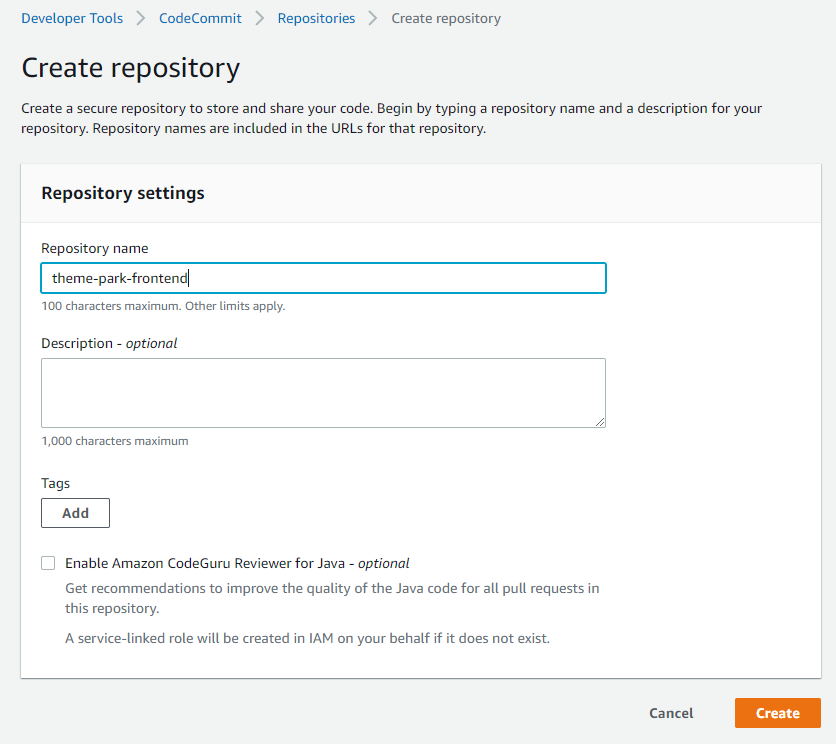
You will see when the CodeCommit repository is successfully created.

2. Clone the code base
Once your CodeCommit git repository is created, you’ll need to pull in the existing files for your frontend app from GitHub and sync to your new CodeCommit repository.
- Go back to your browser tab with Cloud9 running. If you need to re-launch Cloud9, from the AWS Management Console, select Services then select Cloud9 under Developer Tools.
Make sure your region is set to the same region you initially selected for Cloud9.
- The AWS Cloud9 development environment comes with AWS managed temporary credentials that are associated with your IAM user. You use these credentials with the AWS CLI credential helper. Enable the credential helper by running the following two commands in the terminal of your Cloud9 environment.
git config --global credential.helper '!aws codecommit credential-helper $@'
git config --global credential.UseHttpPath true
- Now run the following command to download the frontend code from GitHub into a separate local subdirectory from the backend instructions and code:
mkdir ~/environment/theme-park-frontend
cd ~/environment/theme-park-frontend
wget https://innovator-island.s3-us-west-2.amazonaws.com/front-end/theme-park-frontend-202110.zip
- Unzip the code:
unzip theme-park-frontend-202110.zip
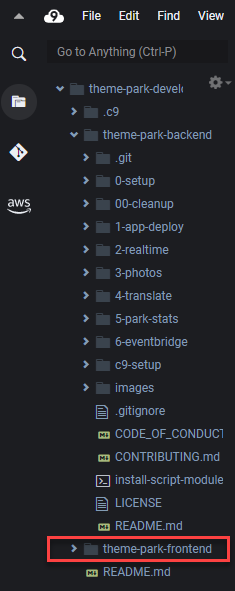
Within the Cloud9 file browser on the left hand side you can see the theme-park-frontend files have been downloaded into a separate local directory from the theme-park-backend.
- Set up the local Git repository and the commit:
cd ~/environment/theme-park-frontend/
git init -b main
git add .
git commit -am "First commit"
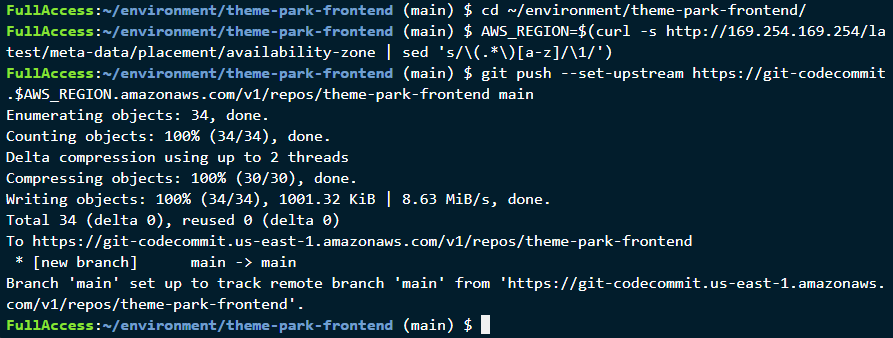
- Push the downloaded code to populate your recently created CodeCommit repository:
AWS_REGION=$(curl -s http://169.254.169.254/latest/meta-data/placement/availability-zone | sed 's/\(.*\)[a-z]/\1/')
git push --set-upstream https://git-codecommit.$AWS_REGION.amazonaws.com/v1/repos/theme-park-frontend main
3. Deploy the site with the AWS Amplify Console.
Next you’ll use the AWS Amplify Console to deploy the frontend website you’ve just committed to the CodeCommit git repository. The Amplify Console takes care of the work of setting up a place to store your static web application code and provides a number of helpful capabilities to simplify both the lifecycle of that application as well as enable best practices.
Step-by-step instructions
-
Launch Amplify Console.
-
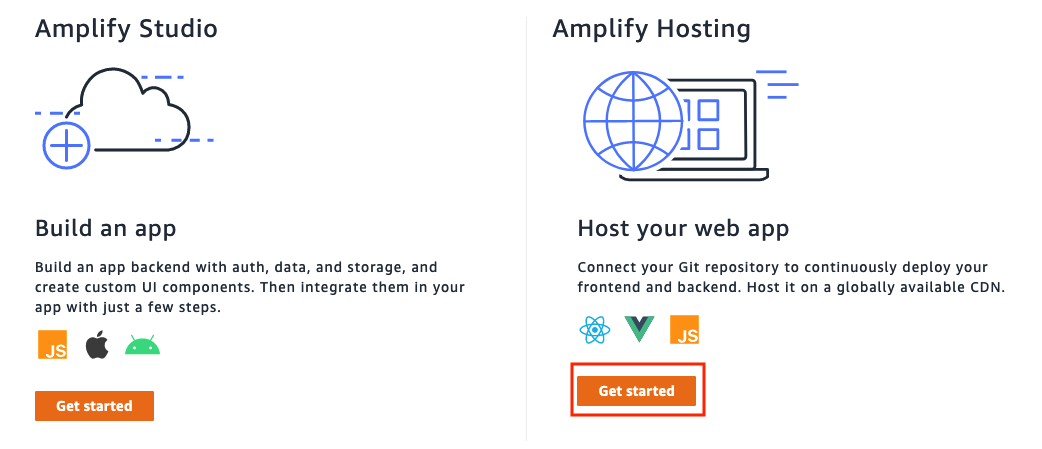
Scroll down to the Get started section, then choose Get Started in the Deliver panel.
-
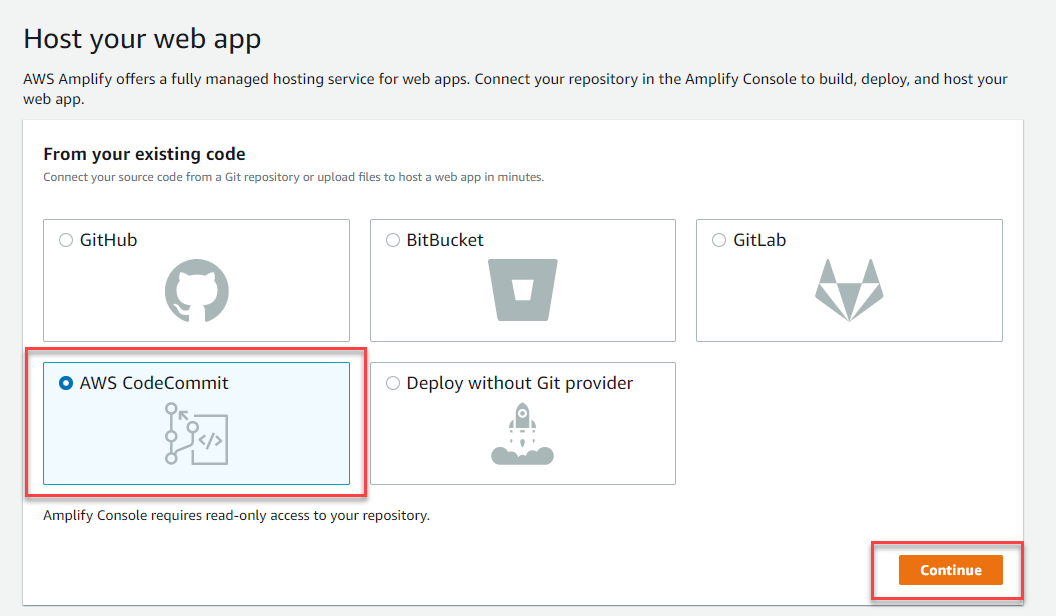
Under Host your web app, select AWS CodeCommit and select Continue.
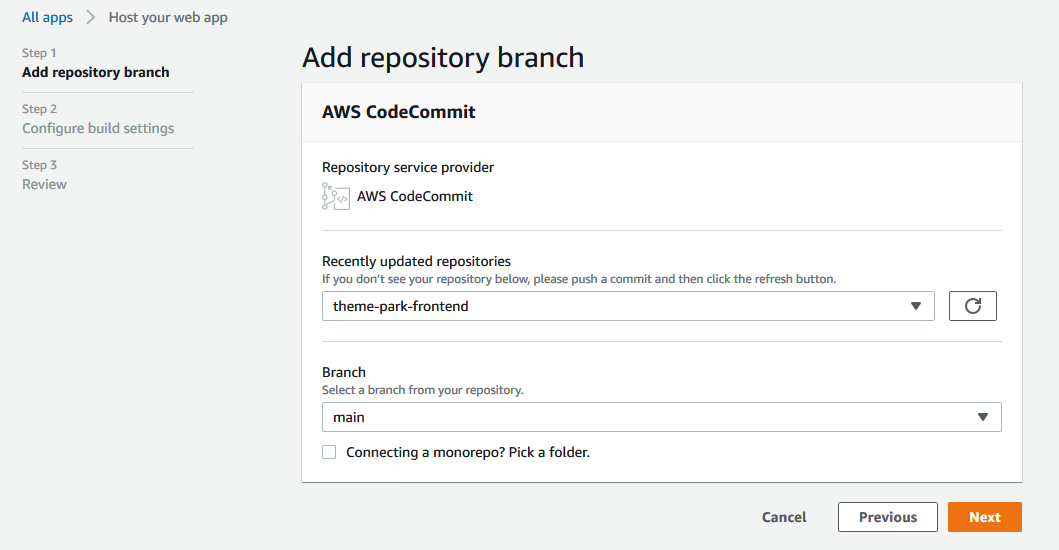
- Select theme-park-frontend under Recently updated repositories, then choose main under Branch. Select Next.
-
On the Configure Build settings page, leave the defaults, scroll down and select Next.
-
On the Review page, verify the settings and select Save and deploy.
The deployment process will take a few minutes to complete. Once the build has a completed the Verify stage, select the Amplify provided link for your app.
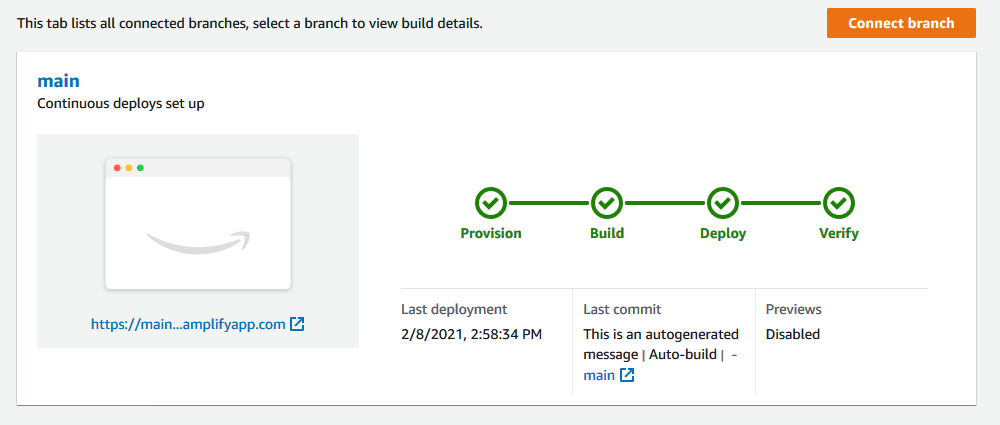
This will open the published URL in your browser. You will see the empty park map with a navigation bar. At the moment, there is very little functionality in the application but we will add those features next.
Copy the published URL of your web app into your scratch pad. You will need this throughout the subsequent modules.
You can also open the URL on your mobile device. This PWA is designed for mobile, so the responsive layout will adjust for different device sizes.
Once you have tested the public URL on a browser and a mobile device, you can start to build the backend.
4. Viewing the deployed web app
After Amplify Console has deployed the app, open the published URL in the Google Chrome or Mozilla Firefox browser.
- Press F12 to open Developer Tools in the browser.
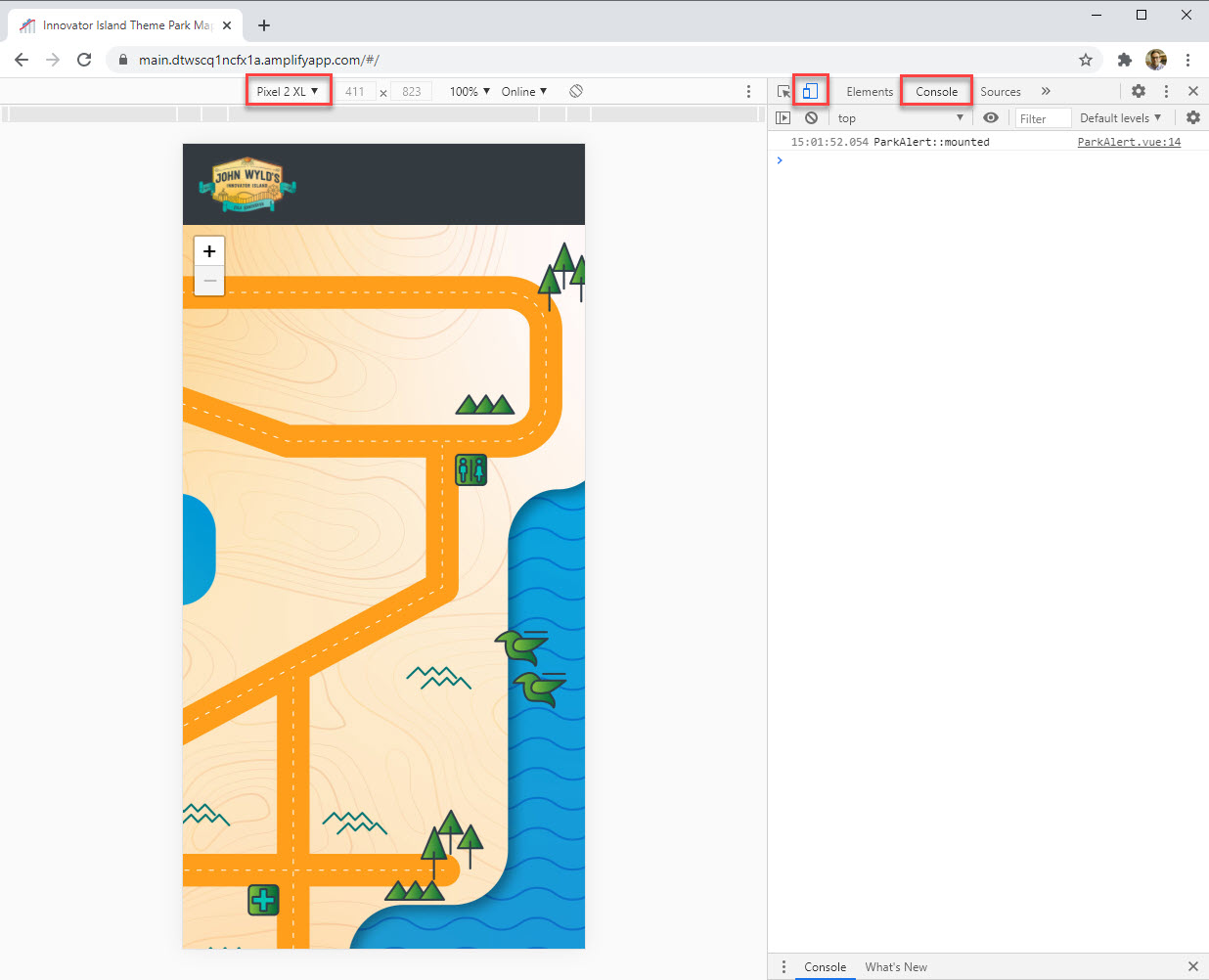
- In Google Chrome, click the Toggle Device Toolbar button to show a responsive, mobile-ready version of the site. In Firefox, the same function is called Responsive Design Mode.
- Watch the Console area for useful messages as the web app is running.